
Before anything, make sure your connected either physical cable or to the CU Anschutz Wifi that requires a login. Otherwise you'll need to connect via VPN which can be found here - *Insert VPN Article*
To start off use any of the usual web browsers, Chrome, Firefox, Safari, Opera, NetScape and navigate to https://copathtc.ucdenver.edu/RDWeb.
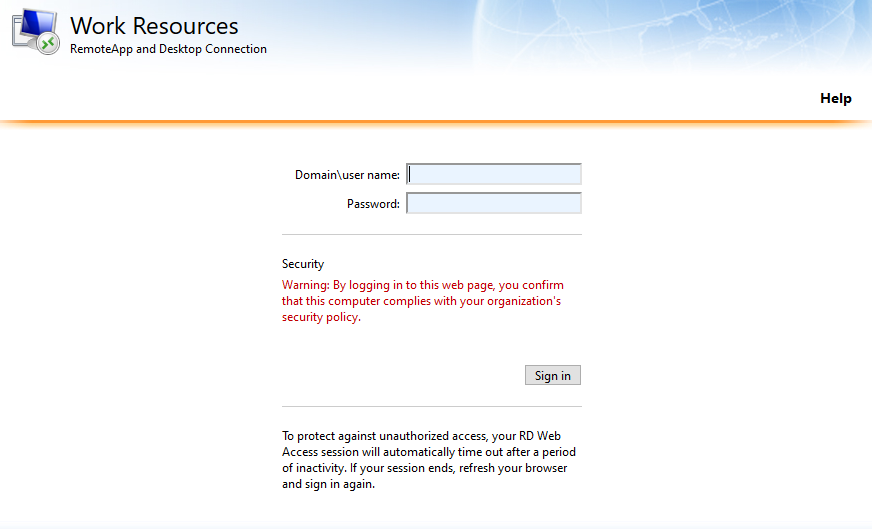
Here you'll need to enter university\username and then your password

Then choose the Live CoPath Icon
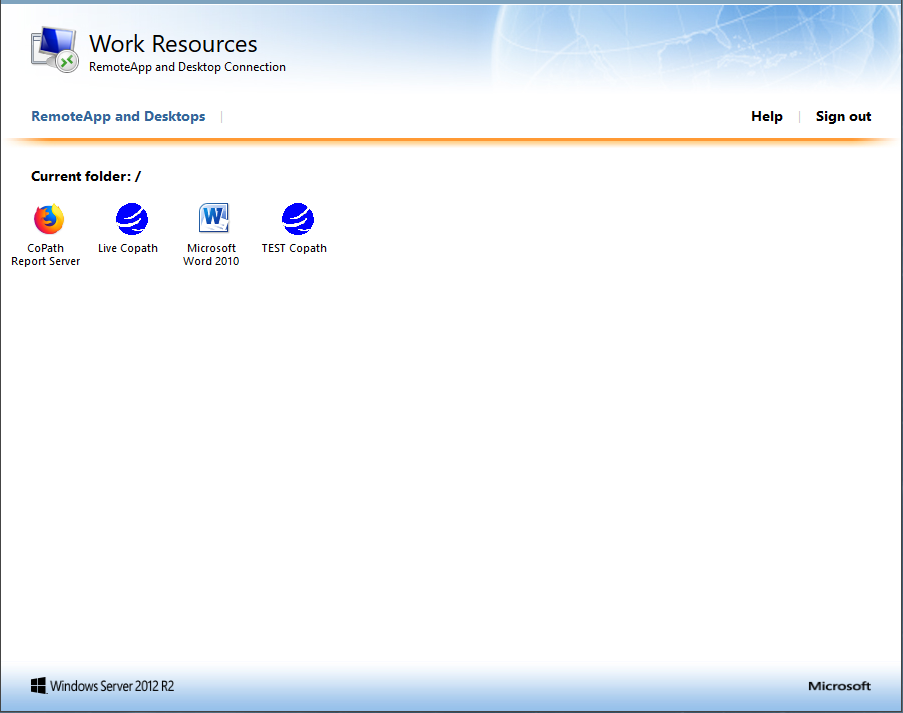
From here you will be prompted to download the connection. When you click the file choose to save the file.
Now go File Explorer

and either click on downloads or paste C:\Users\%USERNAME%\Downloads into the top bar.

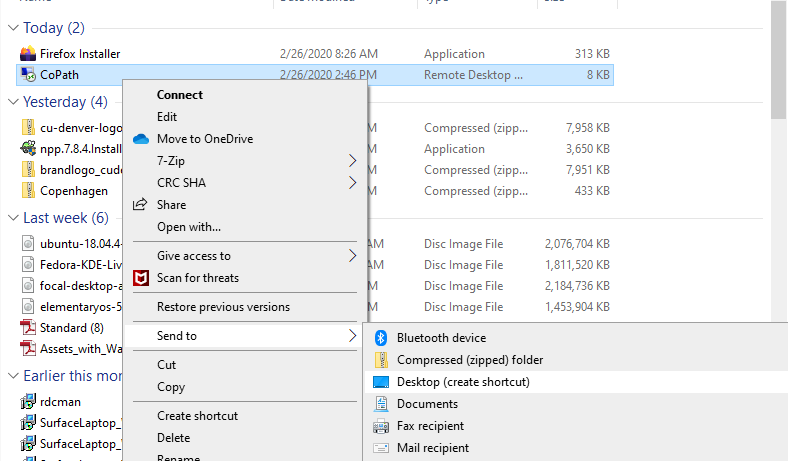
Find the Icon

Go ahead and rename it to CoPath or whatever you would like. Right click on it and go to Send to then Desktop.
Comments
0 comments
Please sign in to leave a comment.