
This document will provide instructions for giving users permissions to view your calendar
- Open Outlook
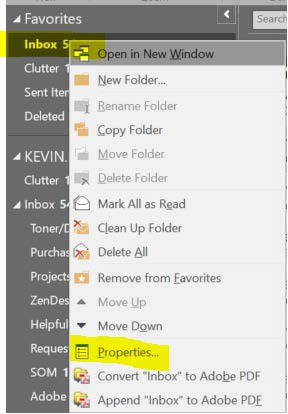
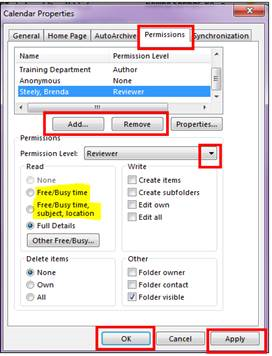
- Locate your “Inbox” and right click on it (Ensure that it is your personal Inbox and not a shared mailbox Inbox). After right clicking, click on “Properties” (see screenshot)
- Click on the “Permissions” Tab
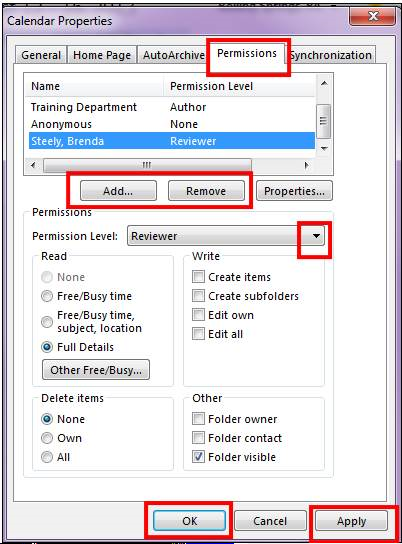
- Within the Permissions tab, you can modify the permissions of all users or individual users.
-Default: Set the default view for ANYONE that adds your personal calendar and has an Outlook account
-Anonymous: Set the default view for anyone that does not have an Outlook account
-Add…: Add a specific user to give them specific permissions.
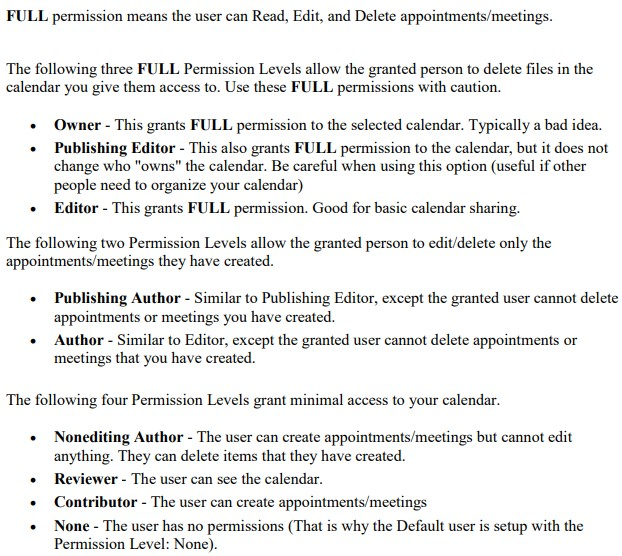
When setting permissions for Default, Anonymous or an individual, please see below for descriptions for each. These will allow you to give permissions to modify, create, add, etc. all entries within that specific mailbox.
- Now that we have gone over specifically what each permission level is, we will now go over how to setup the view that others will see when viewing your calendar.
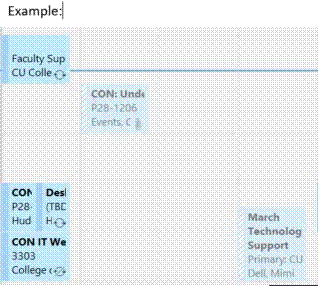
Full Details: View all specific information about each calendar event.
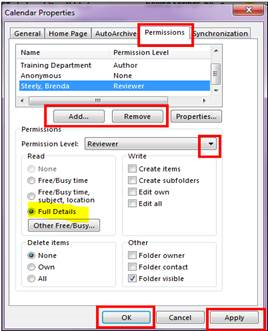
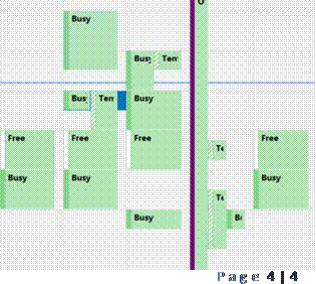
Free/Busy time: Only see when user is free or busy
Comments
0 comments
Please sign in to leave a comment.