
Adding the Printer
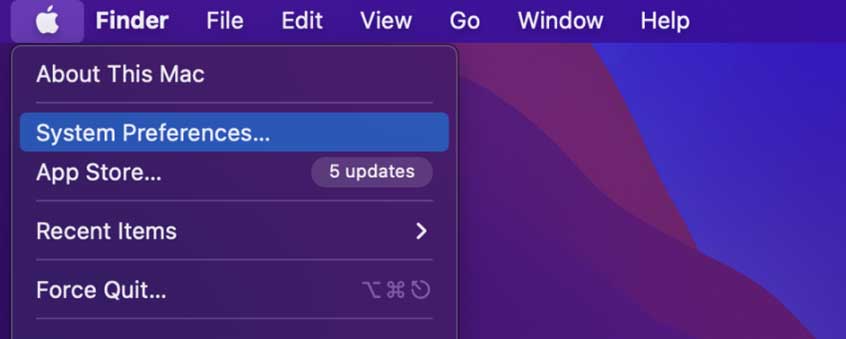
- Open System Preferences by clicking the apple in the top left of the screen
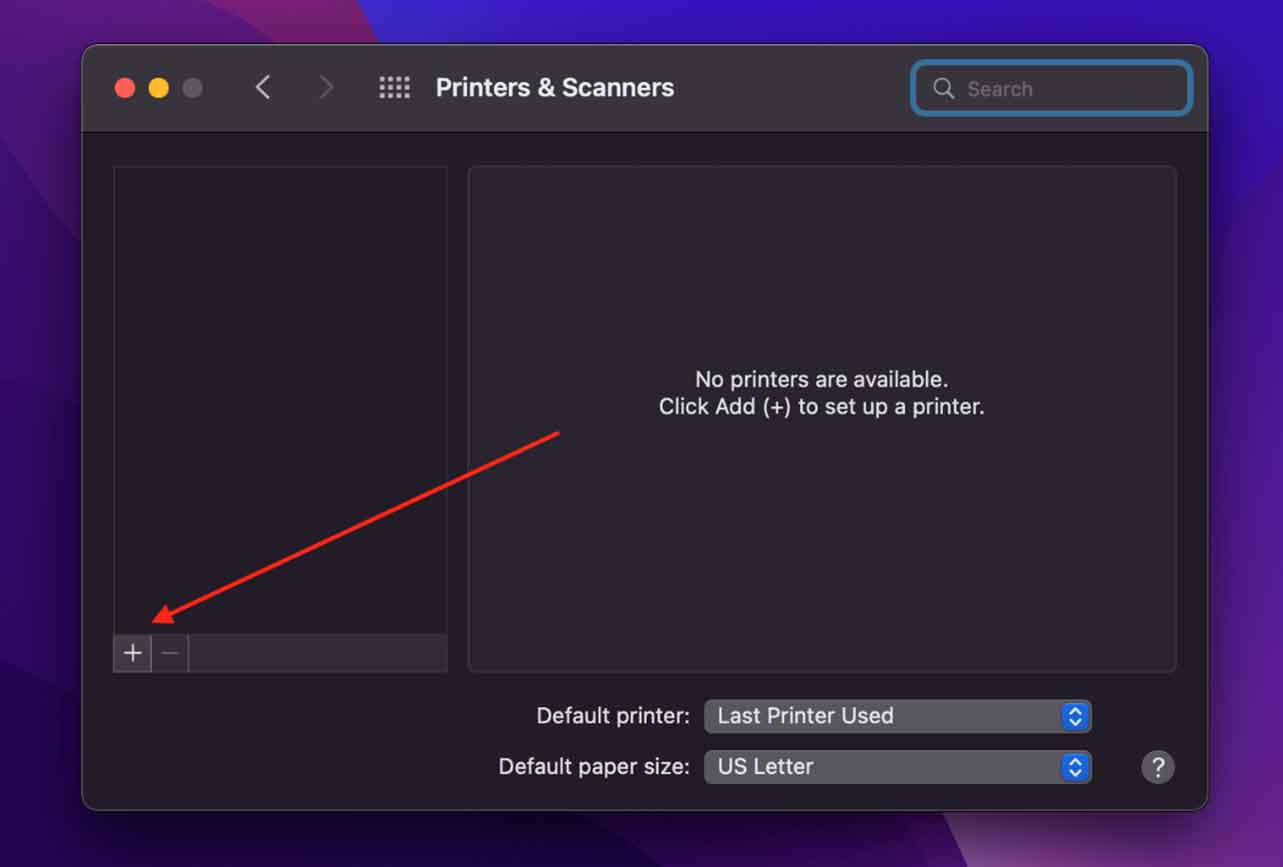
- Go to Printers and Add a Printer
- Control click the blank space at the top and select Customize Toolbox
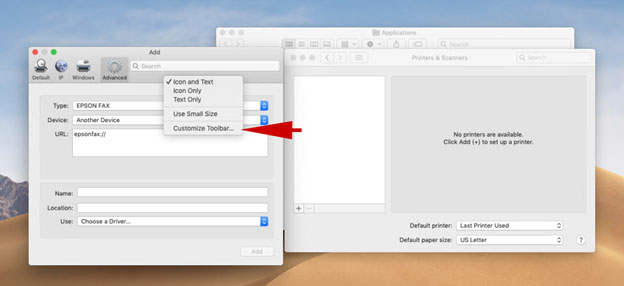
- Drag "Advanced" to the toolbar and select it
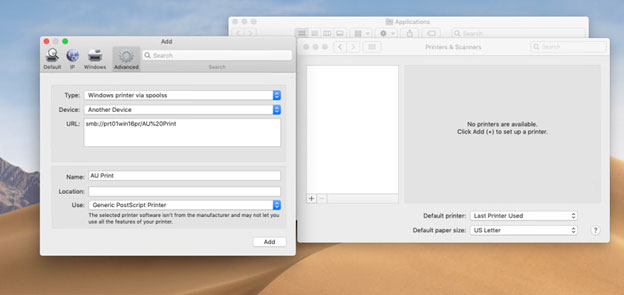
- Reference Screenshot2 for what to put in the fields
- Type: Windows printer via spools
Device: Another Device
URL: smb://copathas3/"Printer Name"
- Type: Windows printer via spools
- Do a test print and wait for the credentials to come up, enter in University\username with username being your University username
- That should do it, it will send a job to the print queue on the Windows server and await them to release it at any copier.
- This technically works with the Generic Postscript driver, but a proper printer driver would probably be best to take advantage of all the duplexing and such the copier has to offer, as well as possible issues with more complicated print jobs like PDFs.
Comments
0 comments
Article is closed for comments.