
- This document will go over how to Export and Import your Google Chrome bookmarks
- Remote into HSC-PATH512 via Remote Desktop connection. This is the old CMOCO Sign-out PC that houses all of your existing bookmarks. If you do not know how to do this, please e-mail ucd-pathhelpdesk@ucdenver.edu
After logging into HSC-PATH512, go into Google Chrome. See screenshot below on how to access the Bookmark Manager 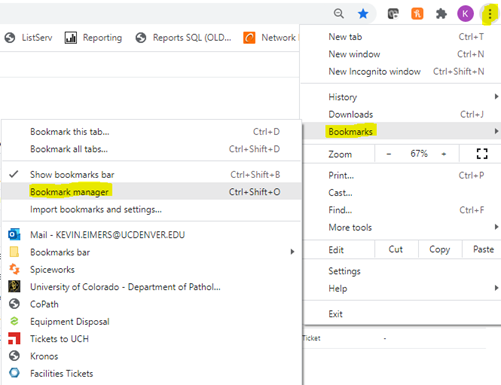
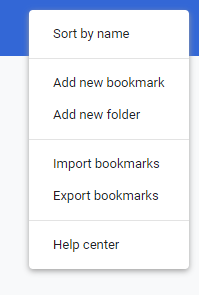
Once in Bookmark manager you will see three vertical dots at the top right of your scren. Click on this. 
- Click on “Export Bookmarks”
Next, you will need to save these bookmarks. You will need to save these bookmarks on either a flash drive or within a network folder (Example: Exchange drive). If you are unsure how to do this, please reach out to ucd-pathhelpdesk@ucdenver.edu
After saving your bookmarks, logout of HSC-PATH512 which should end your remote desktop session. You should now be on the desktop of the PC in the CMOCO Sign-out room.
Reopen Google Chrome and go back to the Bookmark Manager and then choose “Import Bookmarks” and locate your saved bookmarks. Double click on this file and your bookmarks will automatically import.

Comments
0 comments
Please sign in to leave a comment.