
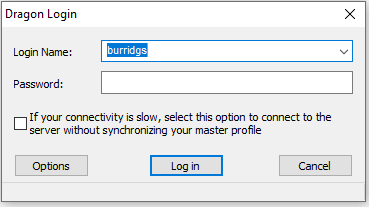
Open the Dragon application and login:
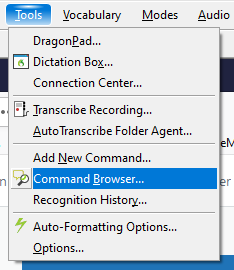
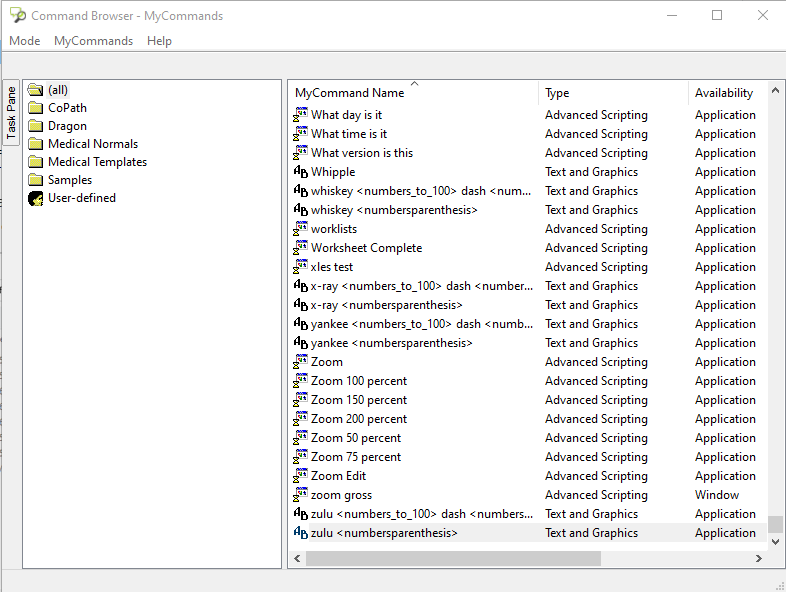
Then go to the top bar and to go Tools --> Command Browser
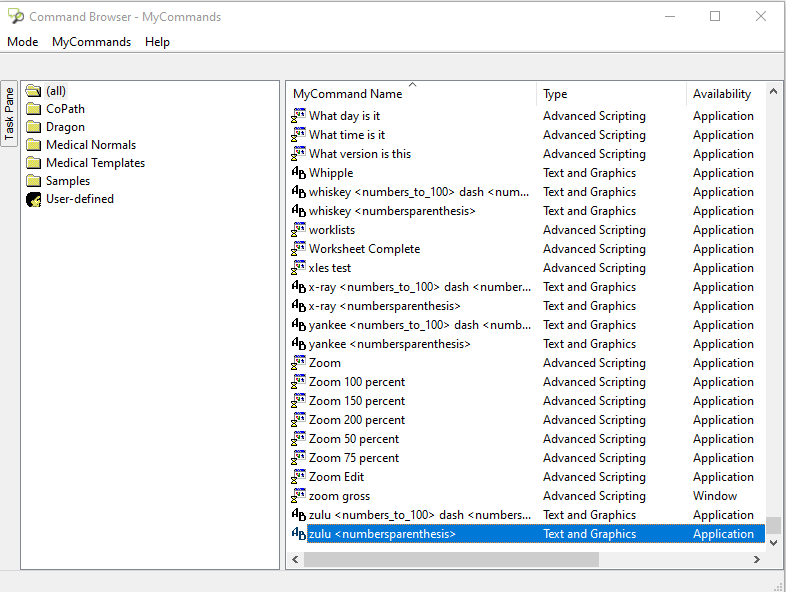
This will open all of the commands associated to your profile.
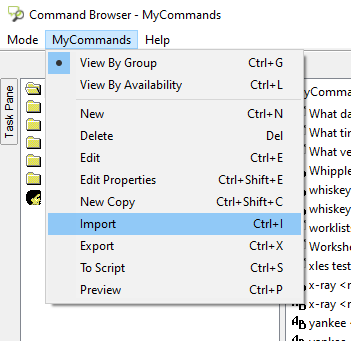
Next go to MyCommands and then Import
Place the path \\path-thor-08\Dragon$\lojos_bc19913e-c4e9-4bac-8702-b990515a8995\lojos\current in the Window Explorer Bar at the top and choose mycmds.dat
It will seem like it's frozen, but it's just importing all the commands and templates. Now you can look through and use the standard setup.
Comments
2 comments
Very informative on how to import commands. Suggest that the title mention something about Dragon so that it is more clear and would attract staff looking for dragon related how-to articles.
Follow up comment to the 1st comment. Realizing that this how-to is in the Software/Dragon section, it still might help to title it such with dragon but not necessary. Take it for what its worth.
Please sign in to leave a comment.